Behind the possibility to select a Scenario file (Optional), hides a complex world of the following possibilities:
oTask management
oSurvey implementation
oBehavioral coding
It is possible to create your own scenario files with tasks and/or questions using the LogSquare Designer or you can use one of the pre-defined questionnaires (like QUIS, SUS and USE).
Scenario File Location
If you created a *.LogSquareScenario file, to run managed tasks or to make use of the participant coding facilities, this *.LogSquareScenario file needs to be available on the participant computer during the session.
The *.LogSquareScenario file used, is copied into the project file while saving the recording session; this makes it available for off-line coding while reviewing a recorded session.
Scenario File Impact
A LogSquare Scenario file can contain any number and combination of tasks and questions.
Questions are presented as an on-screen survey to the participant at the end of each task and/or at the end to the test.
The order of those questions and tasks are all saved in your *.LogSquareScenario File.
For the participant, most of scenario file related actions are handled by the LogSquare Scenario Panel.
What is shown to the participant and what he/she is allowed to do, during the test, depends on the options selected in the Scenario settings on each LogSquare Recorder station as well as on the content of the selected Scenario File.
Details are explained in general right below under Scenario Settings and more specifically in:
oUse Participant controlled Task Management
The LogSquare Recorder Program settings offer a plain check-box for every available functionality. Those settings are part of the LogSquare Recorder and need to be selected on each participant workstation.
Note: Ensure that the selected Scenario File also includes the corresponding data, in order for things to work as expected.
These settings allow you to change the content of the Scenario Panel during a recording session, and only have an effect if you assigned a Scenario File to your session.
Note: The advantages of conducting structured usability tests with predefined scenarios, is explained in the chapter LogSquare Scenario Functionality.
▪Click on the little settings icon  located at the Scenario File selection field to open the Scenario settings dialog.
OR
▪Click General - Settings - Settings and switch to the Scenario section:
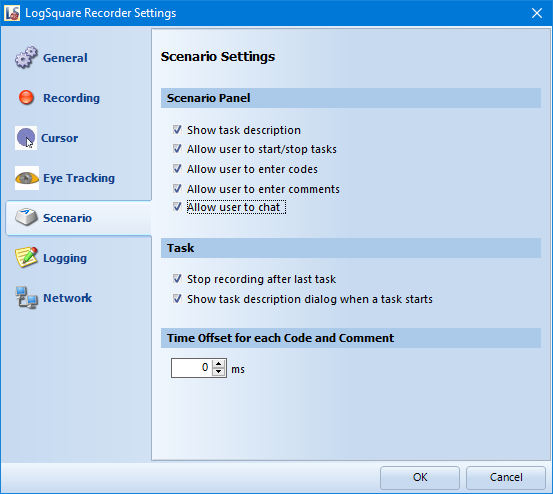
The key features of these settings area are explained in the section LogSquare Scenario Functionality.
Scenario Panel - Those options allow you to specify the functionalities offered by the floating LogSquare Scenario Panel on the participant computer during a recording session.
▪Enable or disable the functionalities to your needs:
✓ Show task description
✓ Allow user to start/stop tasks
✓ Allow user to enter codes
✓ Allow user to enter comments
Task - If you do use the Scenario functionality, those additional options allow you to fine tune the LogSquare behavior during a session.
oStop recording after last task - This option ensures that the recording is properly closed and saved automatically, the moment the last task has been finished by the participant.
oShow new task description dialog - This option presents a dialog containing the description of the next task.
Time Offset - This value is subtracted from each time value that is manually logged.
Entering codes, tasks or comments are all manually logged activities. This Offset value enables you to reduce user reaction latencies or to automatically add a pre-roll to those events. A pre-roll means that the video automatically shows this time just before the selected time, so you can directly see what happened shortly before those entries.
Note: The Time-Offset value does NOT influence the time stamps of automated activities (mouse activities, browser events etc.)
•Activate just the options you need for the current test.