If you do have a moderator or observer who supervises the test from a viewing room, you need to install the Mangold Remote Observer on the 'viewing room computer'.
This provides a clear view on the participant screen content, the webcam content and audio from both user and computer. Additionally, it enables the moderator to enter comments, set Markers and log observational Codes.
▪Start the Mangold Remote Observer on the viewing room PC.
▪Connect to the LogSquare Recorder you want to observe.
Log Codes using the Mangold Remote Observer
When connected to a LogSquare Recorder, it at least is possible to set marker during the observation:
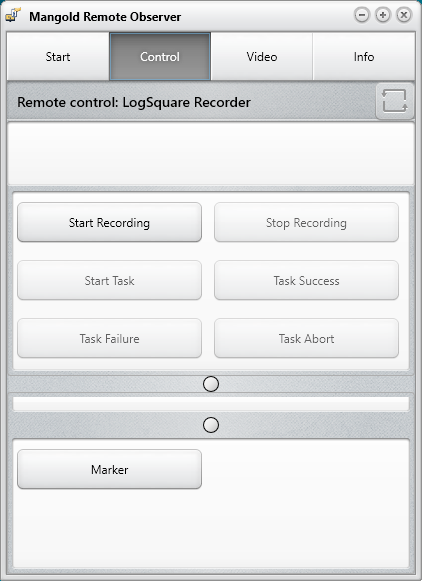
▪Click Marker to insert an unspecified marker line into the log file of the recorded session.
If you have selected, on the participant PC, a *.ScenarioFile that includes Observer Codes, the specified Codes are listed as buttons:
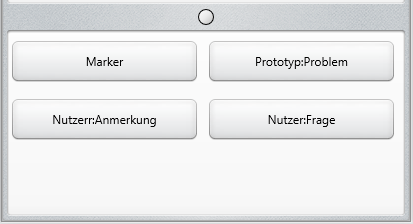
▪Click on the Code that applies to the current situation.
Each Code clicked is entered as an Event without duration, into the Events list of the current recording.
IMPORTANT: You need to specify the Codes to be used in a scenario file that is created with the LogSquare Designer AND to make sure the correct *.LogSquareScenario file is selected in the LogSquare Recorder on each participant computer.