Verify if all required sources are selected and configured correctly, as described in Prepare a Screencast.
The start of a recording session is initiated on the Start tab of the LogSquare Recorder OR from the Viewing Room using our Mangold Remote Observer:
▪Click the Start record icon  in the LogSquare Recorder
or
▪Click the Start Record button on the Control tab in the Mangold Remote Observer.
In both cases, a black screen appears, the content depends on what you record:
 | With Eyetracking |
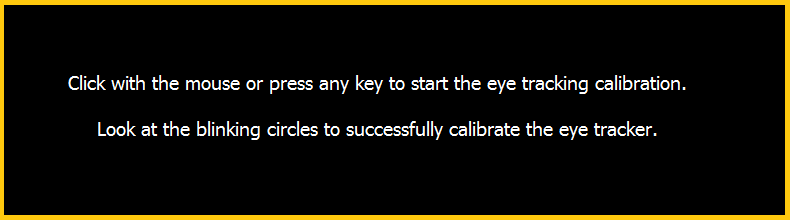
| No Eyetracking |
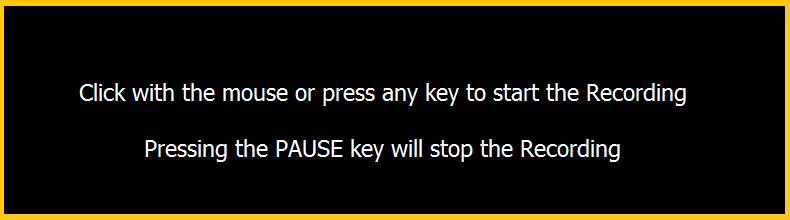
Note: This 'black screen' enables you to prepare all participant workstations before the participants arrive, which prevents any upfront impressions.
▪Let the participant press a [key] or click with the mouse when ready to start.
Only now the actual recording session is started and LogSquare collects all information requested.
| TIP: | For structured usability tests, you can use the Task Management features or make use of the possibility to to enter live codes and comments - either as a participant and/or as an observer. |
▪Read the section LogSquare Scenario Functionality for all the details.