These settings are only of interest if you have acces to a Mangold Eye Tracking device.
▪Click the  icon in-front of Start - Recording Options - Record User Eyes, to get directly to the required settings.
or
▪Click General - Settings - Settings and switch to the Eye Tracking section
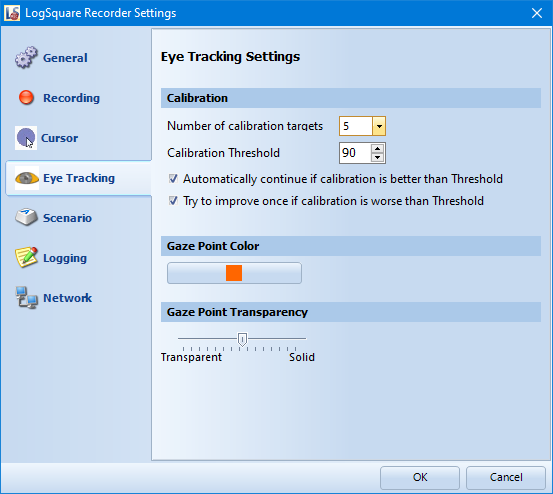
If a compatible Eye Tracker is connected, LogSquare is able to record the participant gazes and project those on the recorded screen.
Calibration
Specify the calibration process to fit your needs best:
The number of calibration targets can be set to 5, 9 or 16 Targets.
The default of 5 points works for most setups.
The more targets are used, the more accurate the eye tracker can work, but the number of points that can be adversely affected by reflections also increases. Additionally, calibrating 16 targets takes a while, so if you do have many participants or if you work with children or other people that do have an attention problem, you are better off with a lower number of targets.
Calibration Quality
Per default, after all calibration targets have been shown, a Calibration Results dialog appears - allowing you to either continue with the project whenever the calibration values are OK or to improve the calibration in case the values are not satisfying.
To simplify this process, you can adjust this behavior during the test.
oCalibration Threshold - The higher this value, the more accurate a calibration needs to be before it is accepted. This Threshold value is used to judge the result of the current calibration, as soon as at least one of the following options has been activated:
oAutomatically continue if calibration is better than Threshold - Selecting this option ensures that the project starts directly after the calibration is finished, whenever the calibration results did reach at least the Threshold value.
oTry to improve once if calibration is worse than Threshold - Activating this option automatically starts the Improve Calibration routine, if the calibration results did not reach at least the Threshold value.
IMPORTANT: The Eye Tracker needs to be calibrated for each participant separately, more targets get better results, but also takes longer per participant during the session.
Gaze Point Color
Specify the color of the circle that represents the participant's gaze point in your screencast video:
▪Click on the colored box and pick your favorite color.
Note: Make sure this color differs enough from the Cursor Highlighting color!
•
Gaze Point Transparency
Specify the transparency of the circle that represents the participant's gaze point in your screencast video:
▪Pull the slider to the left to make the circle more transparent.
▪Pull the slider to the right for a more solid circle.
Multiple Eye trackers
LogSquare supports multiple Eye trackers! This allows you to track gazes on multiple monitors.
The setup for multi eye tracking in LogSquare is very easy:
▪Attach as many eye trackers to the pc as you like.
▪Make sure that the eye trackers have a horizontal gap of about 15 cm between them.
▪Start the LogSquare Recorder and set a file name for 'Save Recording as'
▪Select Start - Recording Options - Record User Eyes to activate the collection of gaze data.
▪Switch to the Recording Area tab and select Full Desktop.
With this option, the LogSquare Recorder will record a screen video of the whole extended Windows desktop.
▪Switch back to Start and click on  , to start the recording
At the bottom of the black start screen on each monitor, the LogSquare Recorder tells you which eye tracker has to be attached to which screen:
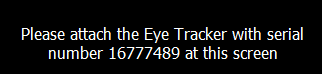
▪Position the eye trackers accordingly and make sure the serial number matches that on the screen.
▪Press any key on the keyboard to continue.
The calibration process is repeated for each eye tracker, starting with the first screen.
Note: Make sure you position yourself during the calibration similar to the way you are positioned during the test itself; if the activities on the different monitors requires moving the participants chair, make sure this is also done during calibration or vise versa.
After the last calibration is done, the screen recording starts.