Latency values in INTERACT per default reflect the time between the onset of the DataSet and the onset of the first occurrence of a particular Code within that DataSet.
Latency Statistics
INTERACT offers Code based latency values within the DataSet based Statistics, available from withing the Time Line Chart:
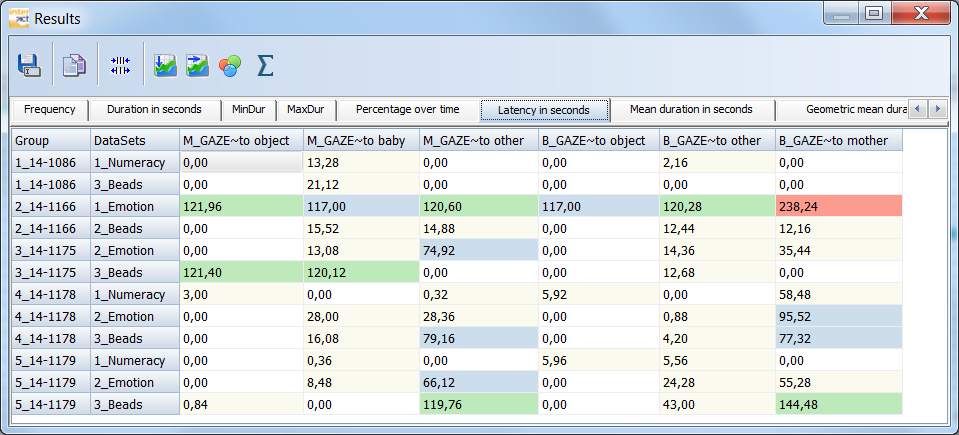
▪Read Statistics on DataSets or Full statistics to learn how to get there.
Latency Command
Alternatively, it is possible to run the original Latency analysis routine for a specific Code only. This routine allows you to search for the first occurrence of a specific Code, after a specific point in time.
This routine, is useful if you want to know, how much time went by before a specific Code was coded for the first time, after for example the first 5 minutes of the test.
Note: If you are interested in the latency between two specific Codes, use the Contingency Analysis instead.
▪Open an existing INTERACT data-file.
▪Click Analysis - Time sequence - Latency  in the toolbar.
The first dialog, enables you to define the behavioral Code you are looking for:
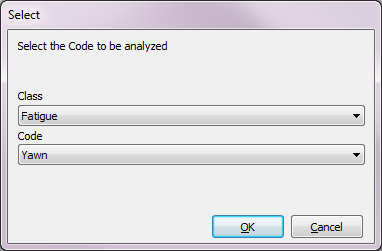
▪Select the Class and Code of the first behavior and confirm with OK.
The second dialog, enables you to define the start time, for the search:
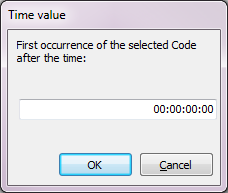
▪Enter the start time for your search as a valid time value.
The third dialog, shows you the result of the search in seconds:
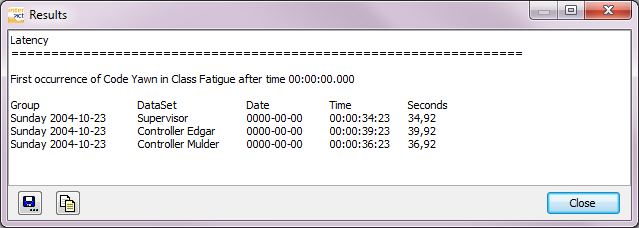
The results are listed per DataSet.
| TIP: | If you want to search for a combination of Codes, to answer the question "When did they yawn and close their eyes simultaneously for the first time?", you need to create new Events for those behavioral combinations first. How to do that, is described in Co-occurrence filter. Than search for the new combined Code instead. |
Export Results
Like in most 'Result' windows in INTERACT, this dialog offers a Save as... and Copy
 button.
 | Save as - Allows you to save the results in an external text file. This text file can be imported into your target application or send by email. |
| Copy - This command copies the data into the Windows clipboard. |
▪Choose Edit - Paste from the menu of your favorite target application to insert the content.