During professional usability studies, a moderator usually supervises and observes the participant(s) during the test. The moderator can either instruct the participant verbally, or use predefined tasks while using the scenario functionality of LogSquare.
In order to get comparable results among multiple participants (like performance per Task), it is advisable to work with a pre-defined setup of tasks and questions.
Using the LogSquare Designer you can pre-define one or more tasks for the participant and include survey questions per task as well. Those tasks can be used to:
oInstruct the participant
oStructure the task order
oLogging the start and end times of each task
oDefine time limits per task
oAutomate task switching
oPresenting survey questions after a task is finished
oGrouping and comparing results per task
oSummarize survey results during analysis.
Defining a proper scenario file, containing your tasks and questions, ensures that each participant receives the exact same information, which results in comparable and plausible results.
How to define your own tasks is explained in the section LogSquare Designer, how to activate the different approaches is explained below.
Activate Scenario Functionality
Independent of who is using this functionality: The required *.LogSquareScenario file needs to be selected on the participant PC!
▪Start the LogSquare Recorder on the participant PC.
▪Click on the little folder icon at the far right of the Scenario file field, to select the *.LogSquareScenario file of your choice.
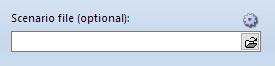
Setup Recording station
To enable or disable the required sections on the scenario panel of the participant:
▪Click on the little settings icon  located at the Scenario File selection field to open the Scenario settings dialog.
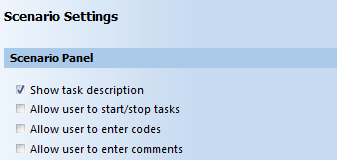
▪To keep the task description visible during the task, activate the option Show task description.
▪Set the option the Allow user to start/stop Tasks, according to your needs.
▪Set the option Allow user to enter codes, according to your needs.
▪Set the option Allow user to enter comments, according to your needs.
▪Confirm your settings with OK.
How to make use of te activated features during a session is explained in the following topics:
oUse Moderator Controlled Task Management
oUse Participant Controlled Task Management
oLog Live Moderator Observations
Further details about the Scenario functionalities can be found in the section LogSquare Scenario Functionality
Define Tasks
How to specify your tasks is explained in those topics:
oTask management by the participant
Note: The results of any task based session can be analyzed using the LogSquare Analyzer, for example by showing you details about the duration of each task.