LogSquare offers an easy to use toolbar, dividing the available controls into logical groups and tabs.
Tab: Start
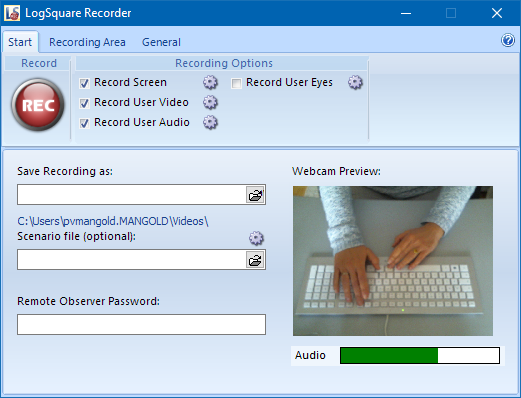
This default tab offers you everything to start your screencast project:
▪The REC button it starts the recording session.
▪The available Recording Options allow you to select the required sources.
▪You can name your project in the Save Recording as: field.
LogSquare automatically adds a date and time lable for each recording.
▪Optional: Selecting a Scenario File in the corresponding field allows you to use predefined tasks, predefined codes and questionnaires as is described in the section LogSquare Scenario Functionality.
▪The settings icon  located at the Scenario File selection field, allows you to enable/disable the various Scenario Panel functionalities, like live user comments and chat functionality.
Tab: Recording area
Here you can select the area that is recorded:
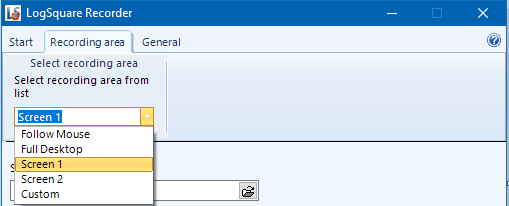
The available options depend on the number of displays attached.
There are different ways to specify this area:
▪Select any of the available areas form the drop-down menu.
▪Select the Follow Mouse option to record only the screen that is currently used.
Note: This is a powerful feature to record multiple screens but without creating an ultra-wide video that requires an ultra-wide screen fro proper playback.
▪Select Custom and drag the appearing screen borders to their required position to specify your custom area.
For further details please read the topic Recording area.
Tab: General
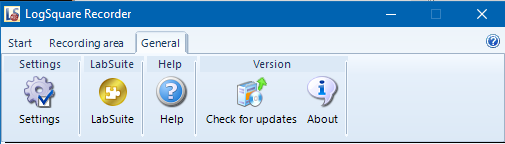
This tab offers various general application wide commands:
oSettings - Opens the application settings dialog, as described in LogSquare Recorder Settings.
oLabSuite Apps - Opens a dialog that lists all currently running Mangold LabSuite applications, that are found within the same network. All listed applications are ready to comunicate.
oSystem Specs - Opens a dialog that holds the most important system specifications. You can copy those into a support email to speed up trouble shooting.
oUpdate - If you have the Mangold SoftwareManager installed and a working internet connection, this command verifies if any updates are available.
oHelp - Opens the LogSquare help file.
oInfo - Shows details about the software and its exact version number.