Live comments can be entered by the participant .
Note: You can minimize and standardize the number of live comments by using predefined Codes. Both the Participant Codes and the moderator Codes for live observations are part of the Scenario Functionality.
Details about the Moderator Codes is described in Log Live Moderator Observations.
If you do not want to setup a scenario file, the participant can just use the live comments functionality as it is - if that's all you need.
Log Participant Comments
Enable/Disable Participant Commenting
If you do NOT want the participant to enter any comments, check this:
▪Go to the participant computer and open the LogSquare Recorder.
▪Click on the little settings icon  located at the Scenario File selection field to open the Scenario settings dialog.
▪Clear the option Allow user to enter code and comments.
If you want the participant to enter his own comments, this is the way to do it:
▪Click on the little settings icon located at the Scenario File selection field to open the Scenario settings dialog.
▪Activate the option Allow user to enter codes and comments.
▪Confirm with OK.
Participant Commenting
The moment you start a recording session with the above settings, an additional floating LogSquare Scenario Panel appears, showing the Comment field:
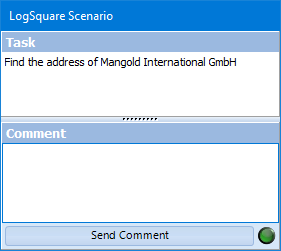
▪The user can enter a personal comment into the Comment field.
▪Click Send Comment or press RETURN to enter this information into the log file (all of course including the corresponding time information).