These settings are only of interest if you are using the Live Observation mode, while working with multiple recorder sessions simultaneously.
▪Click General - Settings - Settings and switch to the Network section:
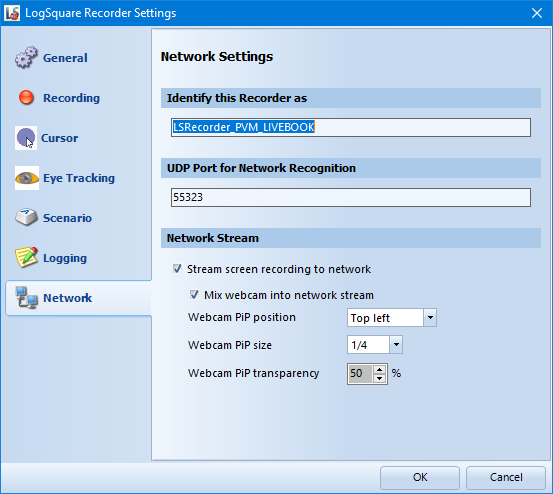
Identify this recorder as
This is the name under which the LogSquare Recorder session can be identified in the network and also the name assigned to the User Events within the event log file.
UDP port
Only important in case of a conflict with other applications.
Network Stream
To broadcast the currently recorded screen content over the network, so the screen content can be viewed by our Remote Observer in a viewing room:
▪Select the option Stream screen recording to network
To include the currently recorded webcam content in your network stream:
▪Select the option Mix webcam into network stream.
If you want to include the webcam stream, it will be show as a Picture-In-Picture image within the screen video.
You can alter the position, size and transparency of this PiP image using the available settings:
Webcam PiP position
▪Select the position of the image recorded by the webcam from the drop-down list.
Webcam PiP size
▪Select from the drop-down list the approximate size of the image recorded by the webcam.
The sizes are related to the horizontal resolution of the transferred screen.
Webcam PiP transparency
▪Select the transparency of the image recorded by the webcam from the list.