To ensure that all data-files from the same study, display statistics in the same order and with the same colors, link all data-files to the same Code Archive.
The name of the current Code Archive is entered in the File properties of any of those documents. The <Code Archive-name> is the link between data-file and the Code Archive.
Where to find the '<Code Archive-Name>.icar' files is described in Code Archive Editor and INTERACT file storage structure.
Auto-Assignment
Per default, a Code Archive is assigned automatically to each data-file:
Whenever you start a new observation, the name of the current code definition file is entered, into the 'File properties', as your Code Archive name.
Note: For a new, not coded data-file, INTERACT uses the name of the current Code Definition file on save.
Manually assign a Code Archive
If you want to change the default Code Archive, you can do so manually:
▪Open the data-file, you want to assign to a specific Code Archive.
▪Click Start - Current Document - Properties  in the toolbar.
The Document properties dialog appears:
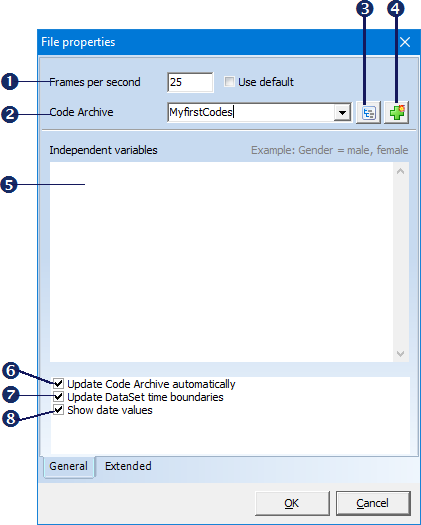
Details about the additional options can be found in the topic File properties. We concentrate on the field Code Archive only:
▪Select an existing Code Archive from the 'Code Archive' list.
Create a new Code Archive
▪Click icon  to clear the current name
▪Enter a new name into the Code Archive text box.
If you enter a new name, INTERACT creates a new Code Archive file automatically!
IMPORTANT: The Code Archive name, used in the File properties dialog, is also used as the file name (*.icar - in the example above it is demo1.icar). Therefore it is not possible, to use characters that cannot be used as a file name in Windows (e.g. "*", "/", ,"\", "%" etc.), so do not use names like "patient/therapist" or "100%-summary" for your Code Archive files.
Fill a Code Archive with data
▪Confirm your changes in the File properties by clicking OK.
▪Save the current data-file.
All Code and Class combinations from the current date file, are added to the current Code Archive automatically, every time the data-file is saved. Each unique combination is only added once.
Code Archive Content
To verify what information is stored:
▪Click Start - Current Document - Properties and than the Code Archive  icon
icon
Disable automatic update
If you do not want all information to be automatically transferred into the Code Archive (e.g. if the Document is used for tests or training), you can disable the automatic update routine for that data-file:
▪Click Start - Current Document - Properties .
▪Clear the checkbox Update Code Archive automatically.
▪Confirm with OK.
From now on, any new Code/Class combinations, found in this document, are NOT entered into the Code Archive.
| TIP: | To make sure the correct Archive is assigned for each new document, it is advisable to create one or more templates with the appropriate Code Archive already assigned, so they can be used by all project members. |