The Code Archive editor, displays the contents of the current Code Archive file (*.icar or *.csy) and enables you to:
oRearrange the order of Codes and Classes, as described in Code Archive Editor.
oAssign diagram colors for each Class and Code, for the graphical display in the Time Line Chart
oDefine abbreviations or translations for each Code and Class, to be used for exporting statistics.
oTranslate Code and Class expressions for a presentation of your statistical results, with the help of the Abbreviation field.
oAccumulate different Codes to a single expression, using the Abbreviation field.
oDescribe each Code and Class in detail (for documentation purposes)
oStructure statistics identically, in multiple data-files, if they are linked to the same Code Archive.
Note: All listed Codes and Classes are collected automatically, from any data-file that is linked to this Code Archive.
Open the Code Archive Editor
There are two ways to open the Code Archive Editor:
▪Click Start - Current Document - Properties  and than the Code Archive
  icon.
icon.
▪Click the Code Archive Editor icon, within the Time Line Chart toolbar.
Both commands, lead to a Code Archive which looks something like this:
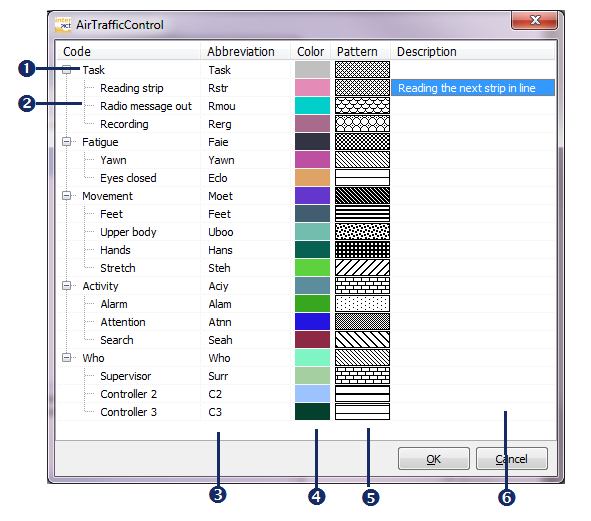
Code Archive Editor |
|
|
Class name |
|
Observation Codes |
|
Abbreviation or translation for the selected item |
|
Graph color for the selected Code |
|
Pattern for the selected Code in the Time Line Chart |
|
Code or Class description |


Note: For Numerical Classes and Comment Classes, no Codes are listed.
Re-arrange the order of Codes and Classes
The most important feature of the Code Archive, is the ability to influence the order of all Codes and Classes in the Main Statistics windows!
Move Classes
Moving a Class, automatically moves all Codes included:
▪Click on a Class and drag it on top of the Class that should be directly underneath, after the move.
The Class and all of its Codes is moved above the Class it was dropped on.
Move Codes
Codes can only be rearranged within its Class!
▪Click on a Code, you want to move and keep your mouse down.
▪Drag to its new position.
IMPORTANT:
 Rearranging Codes between Classes, for existing data, is only possible within the existing data-files.
- Use the Move & Combine codes routine for that.
Changes, for any future data, need to be made within the Code definitions.
Changes made in the data-file, are automatically transferred to the linked Code Archive on save. Old (false) entries need to be removed manually from the Code Archive afterward's.
| TIP: | The connection between data-files and Code Archive is explained in Assign a Code Archive. |