If you create or open a document, the corresponding Document Pane will display its contents in a single tab inside the application windows.
Multiple documents mean multiple document tabs.
Document Structure
The display of each document resembles a spread sheet: all Observation Codes and corresponding time values are structured in columns and lines, each column name represents a behavioral 'Class' of your coding system.
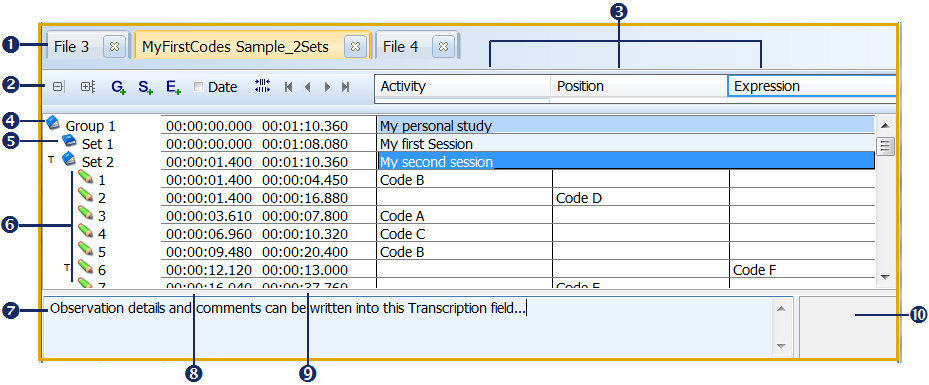
Window Elements
|
Tabs - Each opened INTERACT data-file is represented by a tab. |
|
Commands to collapse and expand all DataSets, insert DataGroup, DataSet and Event lines, optimize column width and scroll through Class columns. |
|
Class names - Displayed as column headers. |
|
DataGroup - Element to group your observations. |
|
DataSet - Element representing your observational session, grouping the logged Events. |
|
Events - Lines with Onset and Offset time information and behavioral Codes. |
|
Transcript area - Field for free text entries per selected line. |
|
Onset - Start time of a DataGroup, a DataSet or an Event |
|
Offset - End time of a DataGroup, a DataSet or an Event |
|
Embedded multimedia pane - Area to display additionally linked files (like pictures, videos, or plain text), for documentary purposes. |


A small capital T in front of a line tells you that there is text entered within the transcription area ( ) for that line.
All time information, as well as behavioral data, is collected in Events.
Behavioral data is identified by Codes, spread over multiple Classes.
Structural elements, like DataGroup and DataSet, are used to group Events. Typically, a DataSet is created per test situation. Using a DataSet per subject within the same session can be useful too - depending on what you want to compare during analysis. Co-occurrences, Sequences and Contingencies are only searched per DataSet. For easy identification, enter a descriptive name for each DataSet and each DataGroup.
You can collect multiple sessions within one data-file. Store the information in separate DataSets and/or DataGroups, to keep them apart. Multiple raters should work in separate documents - you can merge your documents later on.
Document Pane Elements
In addition to the toolbar commands, each document pane offers a few display functions for that specific document:
|
Fold all DataSets - Collapses all DataSets, so none of the available Events are visible |
|
Unfold all DataSets - Expands all DataSets, so all Events are visible |
|
Add DataGroup - Inserts a new, empty structural element, to group multiple sessions |
|
Add DataSet - Inserts a new, empty hierarchical element to contain Events for a new observational session |
|
Add Event - Inserts an empty Event line |
|
Optimize column width - Toggles the width of all Class columns |
 |
Scroll Classes - With those buttons you can scroll through your Classes if they do not fit into the Document window. |


Live Event Highlights
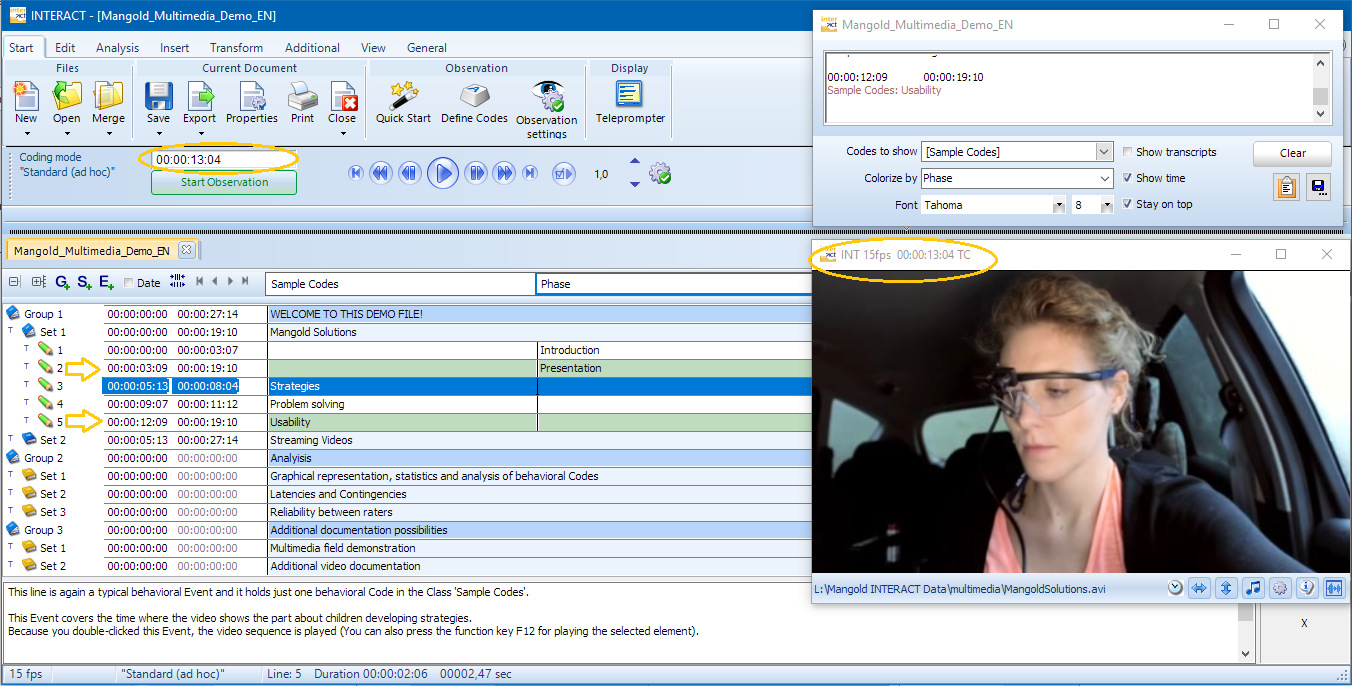
If you open the Teleprompter window, all Events that are covering the current position are highlighted by a green background for all corresponding Events during playback.
▪Open the Teleprompter window by clicking Start - Display - Teleprompter  .
.
▪Click into a DataSet while playing your multimedia file(s), and you'll see the green lines popping up and disappearing, depending on the current position of the multimedia file(s):
•