All you need is:
oA moderator computer that is connected to the same network as the participant PC('s).
oA copy of our Mangold Remote Observer application on the moderator computer.
oLogSquare license key*.
*) Note: You can attach this key either to the participant PC or to the viewing room PC. The required license can be pulled over the network, if setup correctly.
Setup a participant PC
On the participant pc you require the LogSquare Recorder.
The moment the LogSquare Recorder is running, that computer is 'visible' in the network. To transfer the monitor content, you need to activate that option seperately:
▪Start the LogSquare Recorder.
▪Go to General - Settings > Network
▪In case you have multiple LogSquare Recorder stations, enter an appropriate name into the field Identify this recorder as.
▪To broadcast the screen content, select Stream screen recording to network the option.
▪To include the web-cam view of the participant into the network stream as well, activate the option Mix webcam into network stream.
▪Confirm with OK.
Note: Streaming the live-recording over the network requires quite a bit additional computer resources. Make sure you activate this option only if you really use it and make a test-recording to verify that the participant is really able to handle it all:
Your application to test, the screen recording, user video, and live-streaming!
Setup the moderator PC
Your viewing room computer only needs the Mangold Remote Observer to connect with the LogSquare Recorder.
▪Install and run the Mangold Remote Observer on the moderator or viewing room PC.
To observe a remote session, the computer that runs our Mangold Remote Observer needs to be in the same network range (LAN or WLAN).
▪Start the Mangold Remote Observer:
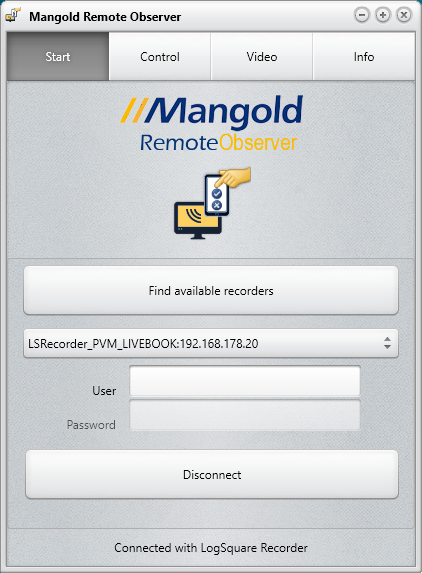
When only one compatible recorder is found, it is selected automatically.
▪In case there are multiple recorders available, select the one you want to connect to from the drop-down list.
▪If you specified a password in the currently selected Mangold LogSquare recorder, enter that password into the Password field.
▪Click Connect to connect to the selected Recorder.
The connection will be established if enough free licenses for remote connection are available.
Additionally, if running the Mangold Remote Observer on a Windows PC and network video streaming is activated on the PC running LogSquare Recorder, you can open a separate window showing the participant screen:
▪Switch to the Video tab.
▪Select the Recorder-name listed.
▪Click Show videos at the bottom of the Remote Observer window.
A new Window appears and after a few seconds, the content streamed from the LogSquare Recorder station appears in this window:
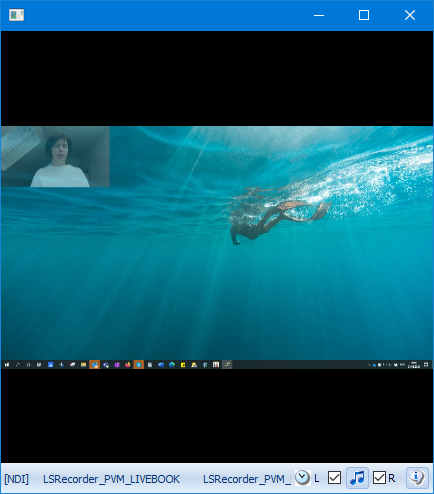
If webcam streaming was also activated, the user face appears Picture in Picture in the specified corner of your Remote Viewer window.
Moderator controls
Once the connection has been established successfully, you can either just watch and see, or you can take partly control of what is happening on the participant PC. As a moderator you are able to:
oStart recording - This command allows you to prepare the recording session on the participant pc up to the point that all the participant needs to do is press the SPACEBAR when ready for the actual recording to start.
Only the name of the task is displayed on the moderator side, the participant sees the descriptive version of it.
oStop recording - The moment the recording has actually started (this means after the participant has pressed the SPACEBAR) you can end the recording by hitting the Stop recording button.
oStart Task - Only active after the recording has been started AND a Scenario file with predefined Tasks has been loaded within the LogSquare Recorder.
For details, read Task management.
oStop Task - Three buttons replace the original Start Task button the moment it was clicked: Success, Failure and Abort. Clicking one of those buttons enters the current time as the end time of the current task, enters the corresponding label to the task and closes the task description at the participant side.
oCodes - Here the observational codes, as defined in the scenario file, are listed. For details please read Log Live Moderator Observations.
oComment - Independent of the predefined codes, you are able to enter remarks that will be entered into the log file, simplifying the search for a specific, not expected event. For details, read Enter Live Comments.
oChat area - Live text message window to communicate with the participant and vise versa. For details, read Live Chat.
Firewall Rules
To ensure communication between the two applications works as expected, they need free access to specific ports that might be blocked by your local Windows Firewall.
If communication between the Remote Observer and the Mangold Recorder fails, the following ports must be opened in the local Windows Defender Firewall on both sides:
oTCP ports 2040 to 2110
oUDP ports 2020 to 2039
For this you might need to insert the following Inbound Rules in the advanced security list of your local Windows Defender on both sides:
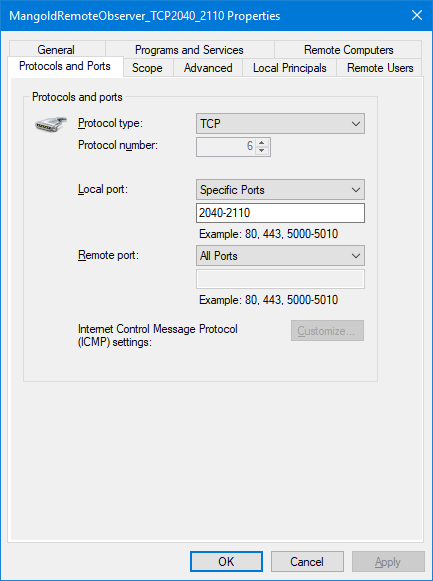
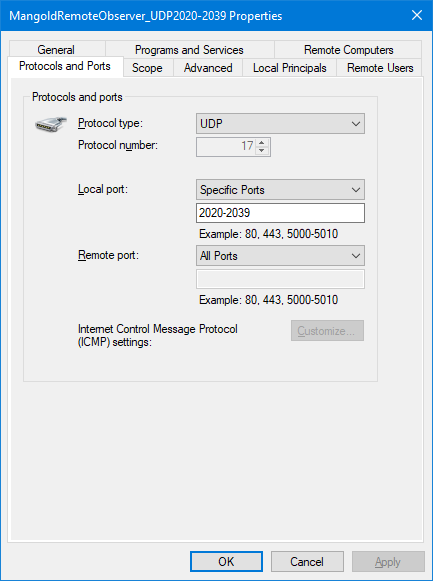
IMPORTANT: Those rules are created the first time you start the application, IF you select all option in the Firewall dialog that appears by default. If those options were not selected, or if you are not sure it was done properly, you will need to make those adjustments manually.