LogSquare allows you to log standardized live comments from the participant as well as the moderator, in form of predefined Codes.
oUsing Codes simplifies the procedure of labeling activities and help you structure the comments.
oIt is possible to combine Codes with free comments at any time.
oThe *.LogsquareScenario file only holds a file reference to the predefined Code Definition (*.ikey) file.
oTo make use of participant Codes, you need a *.LogSquareScenario file that holds a link to the code definitions that hold the participant Codes
oYou can define different Code Definitions for the participant and the observer
| TIP: | Participant coding can be helpful, if you perform your usability tests simultaneously and you have not enough observers to do live observations. A few simple Codes like 'Unclear', 'Confused', 'Lost', that the user can click the moment he feels like that, allows you to easily return to those spots for in-depth analysis. |
Live observations can be logged both by the participant and the moderater or remote observer.
To log live impressions with the help of predefined Codes, the corresponding Code definitions need to be assigned to a *.LogSquareScenario file.
▪Use the Windows Start menu to open the LogSquare Designer.exe
▪Select File - New to design your own scenario
or
▪Choose File - Open... to open an existing *.LogSquareScenario file.
(You will find some standard questionnaires and training scenario files under ...\Documents\My LogSquare Files\Demo Data)
You can leave the Tasks and Question areas empty, if you do not want to make use of those extra structural elements in your study.
IMPORTANT: Participant Code are logged as Markers only (= NO duration, NO hierarchy using lexical chains). If you use any of those options within your Code Definitions, they will be simply ignored for the participant Codes during the recording session.
The lower part of the ScenarioEditor enables you to create predefined Codes that can be used during a session.
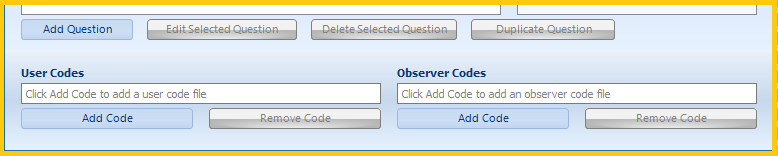
▪Click the Add Code button underneath the User codes header, to assign your participant Codes.
Or
▪Click the Add Code button underneath the Observer codes header, to assign your moderator Codes.
An empty 'Current Codes' Code Definition dialog appears:
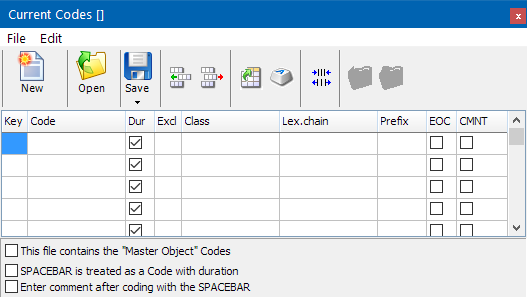
▪Enter a few expressions into the column Code.
▪Enter a corresponding Class for each Code into Class column.
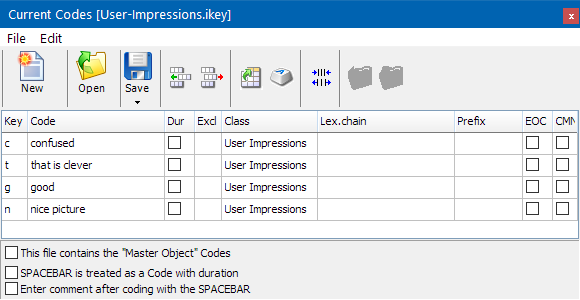
(A class is a label to group your codes logically, e.g. "User Impressions".)
▪Click the Auto assign shortcuts  button to insert a unique key to each Code automatically, or enter specific keys manually in the Key column.
Note: For participant codes, a simple straight list with a few expressions will do. Offering a long and complex coding system to your participant will cause too much distraction from its actual task(s).
Details about this dialog can be found in the section Define Observation Codes.
▪Save and name your Code definitions, which are stored in a *.ikey file, like this:
IMPORTANT: In order to actually use those Codes at the participant side, during a session, you need to activate the Allow user to enter codes and comments option within the LogSquare Recorder Scenario settings.
▪Close the Code Definitions dialog.
A file reference to the Code Definition file just created, is inserted in the User Codes field.
▪Save your LogSquare Scenario file for later use.