For moderator controlled task management, a *.LogSquareScenario file containing your tasks is required and must be selected in the LogSquare Recorder on your participant computer.
On the moderator or Viewing Room computer our Mangold Remote Observer software needs to be executed and connected to the participant recorder.
The recording must be running before the task commands become active.
IMPORTANT: The actual recording session only starts after the participant removes the black screen by pressing any key (see Start Recording for details)! This allows you to prepare all recorder stations.
Remote Task Management
If you have selected a *.ScenarioFile that includes tasks for a structured test scenario, additional buttons will be available on the Control tab after starting the recording:
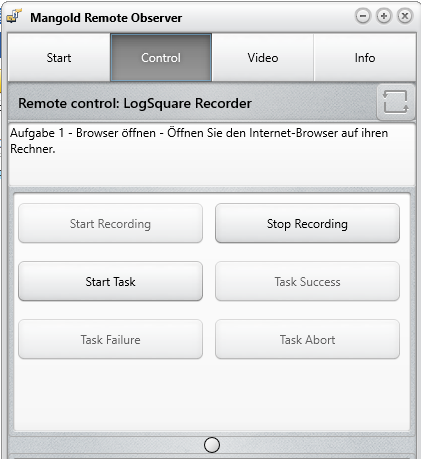
oStart Task - To manually start the next task.
To end the current task, you will need to click one of the following buttons:
oTask Succeeded - To indicate the participant has successfully managed the task.
oTask Failed - To indicate the participant has failed the task.
oTask Aborted - To indicate the participant has aborted the task.
| TIP: | If you have multiple participants performing the same tasks simultaneously, it is better to work with tasks that start automatically, so each participant can work at its own pace. In that case, allowing the user to start and stop tasks in the scenario settings might be a good idea. That way they can continue with the next task whenever they are done with one - unless you want all users to stay in a task for a predefined time, as specified in the scenario file. |
Start Task
If you did not select the AutoStart Tasks option for your tasks, each task must be started manually. The moment the moderator hits Start Task, the participant receives a Dialog with the task description:
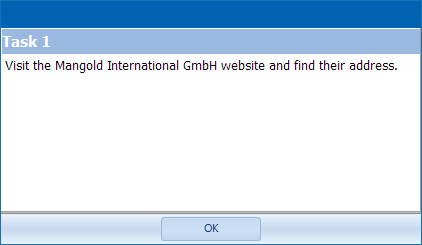
IMPORTANT: The participant MUST confirm this dialog with OK; the start time of a task is logged only after this dialog has been confirmed.
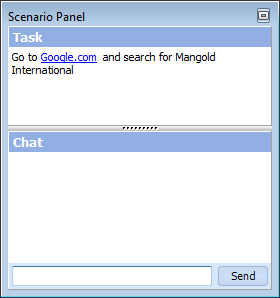
Now the participant is left with a floating Scenario Panel, showing (if not disabled) the description of the first Task (as a reminder) and an additional Chat area:
In the Mangold Remote Observer the moderator now has 3 possible ways to mark the end of a task:
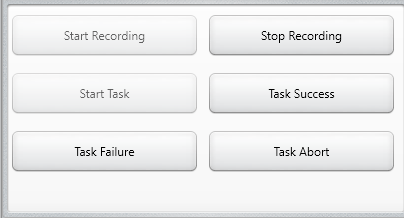
The moment the participant has finished or aborts the task:
▪Click on one of the now available buttons
•Task Success
•Task Failed
•Task Abort
This enters the end time of the current task.
▪The next task can either start automatically or needs to be started by clicking the Start Task button again.
| TIP: | Using auto-start tasks whenever possible allows for an unattended and fluent proceeding. |