The moderator can work with tasks that start automatically, allowing participants to work at their own pace, or Start and Stop each tasks manually, from the remote observation computer.
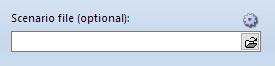
Specify which Scenario file to use
Even if the tasks are managed by the moderator, the predefined scenario file still needs to be specified on the participant PC:
Independent of who is using this functionality: The required *.LogSquareScenario file needs to be selected on the participant PC!
▪Start the LogSquare Recorder on the participant PC.
▪Click on the little folder icon at the far right of the Scenario file field, to select the *.LogSquareScenario file of your choice.
Further details about how to create such a scenario file can be found in the section LogSquare Scenario Editor.
Setup Remote Task Management
Additionally, the Scenario settings in the LogSquare Recorder need to be adapted, to ensure the correct setup:
▪Click on the little settings icon  located at the Scenario File selection field to open the Scenario settings dialog.
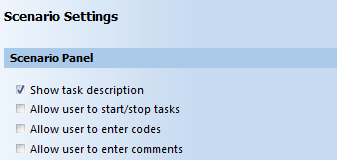
If you do not want the participant to see the task description during the test:
▪Clear the option Show task description.
(At the start of each task the description is shown in a separate dialog, which disappears after confirmation)
To make sure that the user cannot start and stop any tasks manually:
▪Clear the Allow user to switch Tasks check-box.
▪Set the option Allow user to enter codes, according to your needs.
▪Set the option Allow user to enter comments, according to your needs.
▪Confirm your settings with OK.
▪Make sure the moderator PC is within the same network as the participant PC.
▪Start the Mangold Remote Observer on the moderator PC.
▪Connect to the Recorder you want to observe.
▪Read Use Moderator Controlled Task Management to learn how it works.